Showing posts with label software. Show all posts

6 April 2009

Digital Photo Professional 3.6 adds shadow and highlight controls

dpp-3.6Canon has made the latest version of it's RAW image processing software digital photo professional [DPP] available for download, and it has new controls to deal with shadow and highlights in images separately.

It's a strange round of coincidences, but the firmware update for the PowerShot SX1 IS that we reported in February here on the blog meant that Canon needed to make a version of RAW image processing software available for the now RAW capable PowerShot, that version is 3.6.0.2 and can be downloaded from Canon's website along with the PowerShot SX1 IS firmware updater. You'll need a valid serial number for a PowerShot SX1 IS to get access to the files, and the kind folks at www.learnslr.com have one that works fine. Once at the site you'll find the DPP version 3.6 too, and this is what you really want for your EOS camera as it adds the shadow and highlight sliders to the RAW tab of the tool panel.
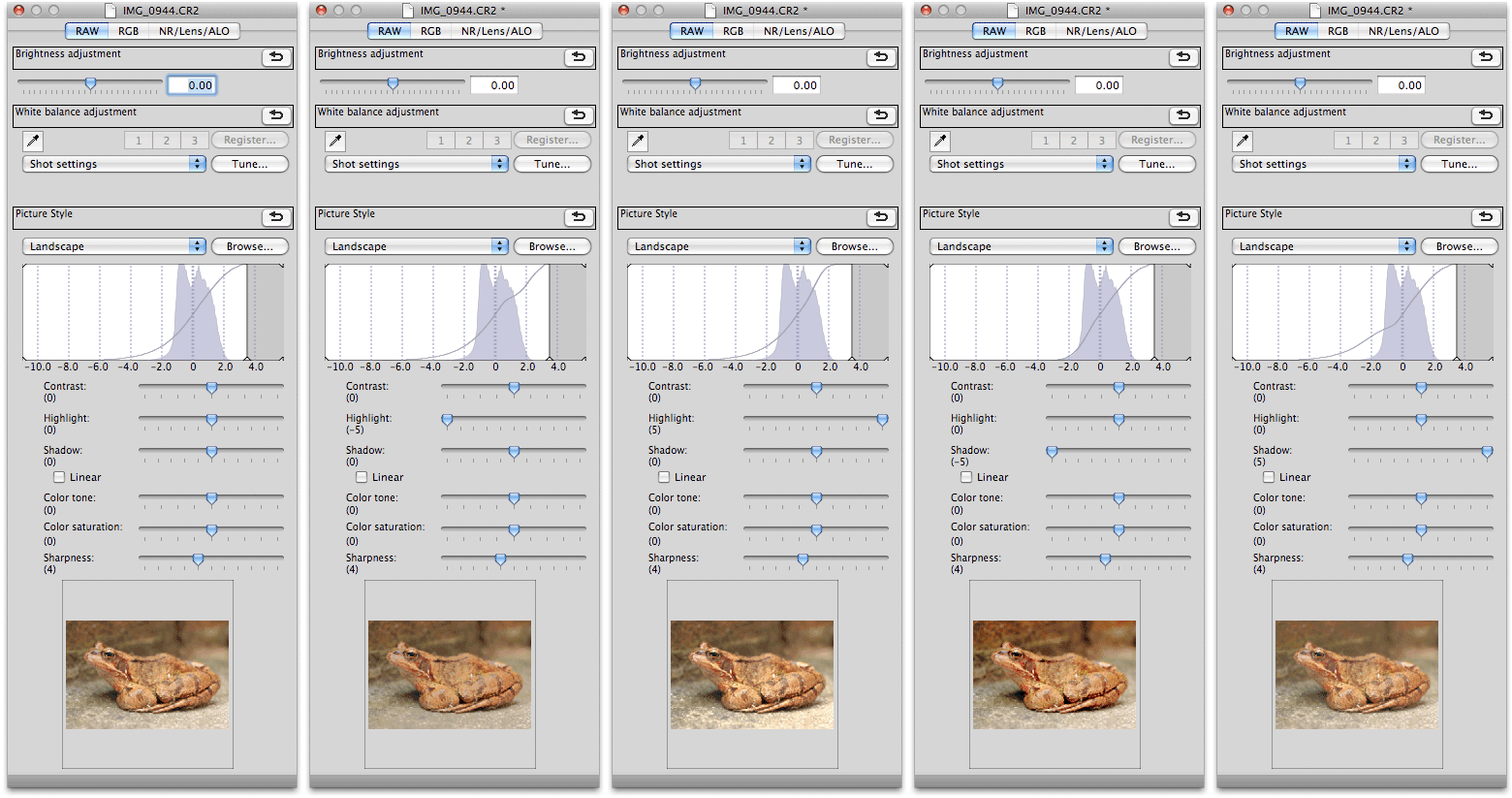

dpp-animationThis quick animation shows the effect of changing the shadow and highlight sliders to their maximum and minimum settings 5 and -5 respectively. In essence the highlight slider affects the shape of the upper part of the tone curve, watch the animation and particularly the tone curve in the histogram box as the different slider settings cycle through. Similarly the shadows setting adjusts the lower half of the tone curve without affecting the upper part. You can combine the effects of shadow and highlight sliders if needed. This is a real boon for DPP users who previously could only make the tone curve steeper or flatter in total, and will reduce the need for this kind of fix in Photoshop to be done to a whole image.

The only concern so far for EOS users could be that there is only DPP 3.6 available. Often DPP updaters need the matching EOS Utility ones, and for now there is no such download available. If you use EOS Utility for tethered shooting or remote camera control you may be better to wait, since surely with the imminent launch of the EOS 500D Canon will make a set of DPP and EOS Utility updaters available from their normal download sites.

Please Canon make the next feature the ability to straighten the horizon in pictures?

-blabpictures-

19 March 2009

Using DPP to make changes to multiple images at the same time

Canon's Digital Photo Professional (DPP) is supplied with each and every EOS camera but many photographers only touch the features on the surface.

Did you know that you can apply adjustments to a group of images in the main window all at once?
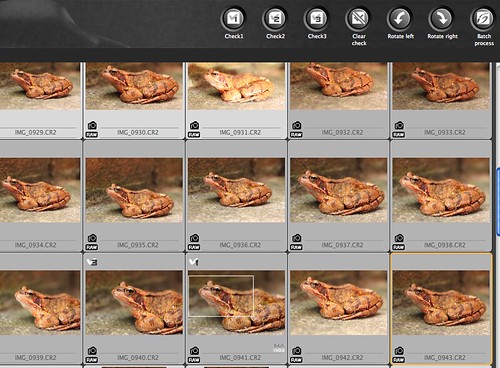
DPP main window


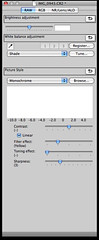
DPP tool panelSimply select a group of images in the main window then activate the tool panel using either APPLE-T or CTRL-T. Then all the changes you make in the RAW adjustment tab are applied to the group of selected images. Global white balance changes, Picture Style changes sharpening can all be done quickly and simply this way.

What's more if you set DPP to normally give you AdobeRGB images as outputs then you can also goto Adjustment menu and select Work color space and then you can change a group of images from AdobeRGB to sRGB or one of the other colour spaces listed. This is handy if you usually use AdobeRGB outputs and need to make some quick proof images for a web gallery. Typically sRGB is more readily accepted by internet browsers and so sRGB images are needed, but this quick change makes this simple for a group of images.

-blabpictures-

12 March 2009

You call the shots with ShutterVoice

I was sent the link to the site www.shuttervoice.com by Chris Neill, our featured 'tog on Tuesday. ShutterVoice's author Scott Forman has written a great application that combines the speech recognition function of the Windows Vista and XP operating systems with camera control - yep that means you can tell the camera what to do for real!

What's next camera activated photographer?


The ShutterVoice application would be great for self portraits as you can call out the commands from your position in the scene. According to the website you can even control the AF while in Live View mode on the EOS 50D and EOS 5D Mark II. Maybe this is a cool thing for the flickr self portrait artists to bring to prominence. I'm sure Microsoft would love to have Miss Aniela on their booth telling her camera to take pictures this way.

ShutterVoice is available to download in a 30 day trial edition, if you'd like to try it for yourself. It only costs 30 US dollars to buy a copy.

-blabpictures-

9 March 2009

Are your high ISO RAW images soft with DPP

There's been some people saying that Canon RAW images taken at higher ISO settings are too soft straight from Canon's Digital Photo Professional software. In the latest versions of DPP Canon made some changes in the preferences and the noise reduction processing. If you simply downloaded the updaters from Canon's software center at http://software.canon-europe.com then you might benefit a quick check of your DPP preferences.

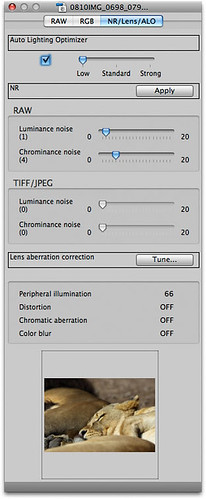
DPP-NR-slidersFirst, here's an image in DPP and checking the NR/Lens/ALO tab you can see the luminance and chrominance noise reduction sliders are set to 1 and 4 respectively. The reason is that the later versions of DPP automatically set these sliders based on the ISO setting, the camera model and maybe the shutter speed, in-camera noise reduction settings etc.

As the ISO increases, and this image is only ISO 200 on an EOS 50D, then the sliders will be preset automatically to increased values.

However remember that as this is a RAW image, so you can change this setting. If you don't want as much chrominance or luminance noise reduction then move the slider to a lower number.


blab:
'there are many ways to skin the noise reduction cat'
The problems seem to come at the extremes of ISO. People with EOS 5D Mark II and EOS 50D shooting at ISO 12,800 and beyond then you often see these sliders move pretty much all the way to the end points and a lot of noise reduction is done. The downside is that it can make the resulting images a bit soft and lacking detail for some tastes.


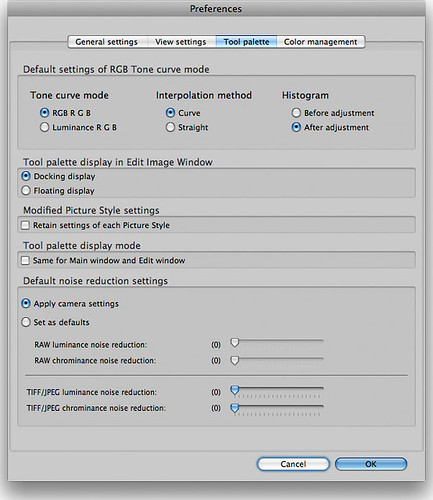
In Digital Photo Professional the preferences allows you to override all this automatic selection of noise reduction parameters. Choose the 'Set as defaults entry and set your levels, even no noise reduction if that suits.

DPP-preferences


The key here is the 'Default noise reduction settings' section. If you just have been adding the updaters to older versions of DPP then your stored preferences won't have an entry and so you get the default 'Apply camera settings' and then DPP chooses the settings for you as a starting point. If you like you can choose your own settings to be applied to all your images, and you can still change it in DPP NR/ALO/Lens tab for each image.

If you regularly shoot High ISO, or do so for a specific job and employ a noise reduction workflow in your post production then you may want to set DPP to not apply any noise reduction by default - or only a very little bit.

Any thoughts and comments or even suggested settings would be welcomed in the comments. You can even mention third party software for noise reduction if you like... we dare you!!

-blabpictures-

2 March 2009

MAC OS 10.5.6 - teething problems for tethered shooting

Just a quick note to share some experience of tethered shooting using EOS Utility with Apple MAC OS-X 10.5.6. It's best if you don't do it!
10.5.5 worked fine, but somehow Apple seems to have broken something with 10.5.6. Even Apple's own support forums have people complaining. If you have installed 10.5.6 as part of the MAC auto update then you don't have a simple way back to 10.5.5, but help or hope at least, is in sight. Apple has just released 10.5.7 to it's beta testers so let's all hope that will fix what Apple broke in 10.5.6.

If you have a MAC with OS-X 10.5.6 and tether your EOS camera to it let us know your opinion in the comments. From our experience a few minutes of Live View mode shooting will usually lock the machine up, and some tethered shooting, say 100 shots, tends to be enough to cause the lock up.

One other thing that we have seen is that even using a camera over PTP mode WiFi still causes the same problem as shooting with it tethered on USB.

Windows users can gloat here at this MAC glitch, but at least the fix for the USB bug seems to be near. Unlike Vista which has sufficient issues that I would recommend an install of Windows XP.

-blabpictures-

10 January 2009

Responses to the EOS 5D Mark II firmware fix

If you read the forums, and we do, you'll have seen that some people are complaining about the new EOS 5D Mark II firmware fix.
They're saying that while it seems to have fixed the spots, the banding in sRAW issue fix has thrown up another problem - a magenta cast when looking at sRAW images in third party RAW software.

Well, surprise, surprise, Canon mentioned this in the announcement so what's the big deal? It seems some people just want something to complain about and the magenta cast is the new one. Well, here's a brief thought on it....

The firmware fix has obviously changed the encoding of the sRAW file to help combat the minor banding issues. Until the third party software apps like Aperture, Lightroom and the others catch up with a patch to decode the files properly, this will remain and really shouldn't be much of a surprise to anyone....well anyone who took the time to read the announcement rather than just apply the firmware!

Canon's software download site has the updates for Digital Photo Professional to version 3.5.2 for both PC and MAC on this page; http://software.canon-europe.com/products/0010678.asp. You will need the update to correctly process the RAW and sRAW images from an EOS 5D Mark II with firmware 1.0.7.

Has anyone here got the EOS 5D Mark II and applied the firmware? If so, tell us your thoughts below.....

-blabpictures-

13 December 2008

Is your software up to date?

Chances are if you are still using the same software that came in the box with your camera you would benefit from an update to the latest version. Since Canon puts a whole plethora of software in the box to allow everyhing from remote control of the camera, tethered shooting, organisation, RAW processing and printing you might find great new features with an upgrade to the latest version. Certainly if you shoot RAW and use Canon lenses then the latest version of DPP is the one with the biggest range of lenses supported for the lens abberation correction function.

Canon Europe puts all it's software on it's software download center at http://software.canon-europe.com. Here you can find not only English software versions, but also French, German, Italian and Spanish if that's more appropriate for you.

A bit of valuable advice DPP and EOS Utility are paired, if you download the Digital Photo Professional 3.5.1 updater, then you also need the EOS Utility 2.5.1 to go with it. This is the typical download for a lot of users but ZoomBrowser and ImageBrowser are there too.

Just recently Canon has added the camera instruction books as PDF files. I just checked the EOS-1D Mark III page and found English, French, German, Italian, Spanish, Dutch, Danish, Swedish, Finnish and even Russian camera instruction books. I think this is new because in the past the only place to get manuals was the Canon USA website.

-blabpictures-

3 December 2008

Put your name in every picture you take

All digital EOS cameras have the option to store the owners name in the camera. Usually it’s done by connecting the camera to your PC or Mac and running EOS utility. You have 31 characters and can use alphanumeric characters but not things like the copyright symbol ‘©’ or the at symbol ‘@’. Then for every picture that camera takes the owners name is embedded in the image files themselves. I’ve seen photographers put their names and cell phone number in the field.

In the recent EOS 50D and EOS 5D Mark II cameras Canon added the option to include the photographers name and copyright notice in the standard EXIF data fields of each image. This is in addition to the owners name field described above. The only drawback is that it’s possible to delete these two fields from the camera using the camera menus. Owners name can only be removed using the EOS Utility.

With the wide spread of images it’s a good idea to make sure your pictures can always find their way home when someone wants to pay you for their usage.


-blabpictures-

26 November 2008

Why DPP?


So, DPP then. What's all the fuss? 
Well for a start, Canon include it with the camera. That's a bonus right off the bat. Unlike some other manufacturers, when you buy a Canon camera it's all there in the box. Thoughtful of them isn't it? 
So if it's all provided, why are there so many third party RAW converters? Well, it's simple not everyone is the same and many people think if the software is given away free, it can't be any good. And that, dear readers, is mistake number one. 
Now, the reasons to use DPP are several, I'm going to put two to you now:
1. No-one knows Canon files like Canon
2. Picture Styles
Number one is pretty self explanatory really. Since Canon make the camera and the CMOS sensor and the DIGIC processor, you'd think they'd know what the output would be and would therefore make a nice bit of software to make the most of it. And you'd be right. 
Number two probably needs more explaining. Here's goes....
While you may choose not to use Picture Styles, the fact is when you take an image on a Canon EOS camera, the LCD display will show you a preview with whichever Picture Style you happen to have set. If you happen to take a quick chimp at the LCD panel and decide you've got the shot you're after, you'll move on. All well and good so far. Trouble comes when you put the RAW into a third-party RAW convertor. They don't deal with Picture Styles, so your image will look a little flatter and less vibrant than it did on the LCD panel. If you did indeed take a look at the LCD display and decided you liked the shot, this can be a let down. 
Before you all comment and tell me that you can process back to where you were using the tools in your RAW convertor of choice, remember that means more time in front of the computer. If you're a photographer who tries to get it right in camera (and that should be all of us, right?) then you may not want to spend ages processing each image back to get it where it could be if you only used Picture Styles and DPP. And as far as I'm concerned, the less time I have to spend processing images, the better. 


-blabpictures-

1 November 2008

Lens aberration correction - compatible lenses

Canon added lens correction functions to Digital Photo Professional in version 3. In essence the software engineers got access to the lens designers manual for each lens. In the lens manual there's the full design specification and the known optical characteristics. The software guys thought that they could improve some lenses performance with some software processing, but having the original lens designers book they could implement one of the best corrections possible; so they did. The result is some kind of special since it actually works really well, and driven by their success the software guys were out drinking with the camera firmware team and challenged them to implement vignetting correction in the DIGIC 4 processor - and so since they had some spare time and some resource in DIGIC 4 to exploit they built peripheral illumination correction in the EOS 50D and subsequent models. However the correction in camera can be thought of as a helper rather than the full solution. In camera the correction for vignetting is 50% of what DPP can do. Also DPP with RAW images can do distortion - pin cushion & barrel, chromatic aberration and colour blur corrections. Suddenly those old lenses on ebay got a bit more useful.

Here's the current list of compatible cameras and lenses with the Digital Photo Professional software. This is going to be kept live so you may want to come back sometime in the future when new models of camera and lens come out.

You can perform lens correction with the following cameras

EOS-1Ds Mark III EOS-1D Mark III EOS-1D Mark II N
EOS-1Ds Mark II EOS-1D Mark II EOS-1Ds
EOS-1D EOS 5D Mark II EOS 5D *1
EOS 50D EOS 40D EOS 30D *2
EOS 450D

EOS Digital Rebel XSi
EOS 400D

EOS Digital Rebel XTi
EOS 1000D

EOS Digital Rebel XS

*1 - Requires firmware version 1.1.1 or higher for maximum lens compatibility

*2 - Requires firmware version 1.0.6 or higher for maximum lens compatibility


Ultra wide and wide-angle lenses
EF14mm f/2.8L USM EF 14mm f/2.8L II USM
EF 20mm f/2.8 USM EF 24mm f/1.4L USM
EF 24mm f/1.4L II USM EF 24mm f/2.8
EF 28mm f/1.8 USM EF 28mm f/2.8
EF 35mm f/1.4L USM EF 35mm f/2


Standard and medium telephoto lenses
EF 50mm f/1.2L USM EF 50mm f/1.4 USM
EF 50mm f/1.8 EF 50mm f/1.8 II
EF 85mm f/1.2L USM EF 85mm f/1.2L II USM
EF 85mm f/1.8 USM EF 100mm f/2


Telephoto lenses
EF 135mm f/2L USM EF 135mm f/2.8
(with soft focus mechanism)
EF 200mm f/2L IS USM EF 200mm f/2.8L USM
EF 200mm f/2.8L II USM EF 300mm f/2.8L IS USM
EF 300mm f/4L IS USM EF 400mm f/2.8L IS USM
EF 400mm f/5.6L USM EF 400mm f/4 DO IS USM
EF 500mm f/4L IS USM EF 600mm f/4L IS USM
EF 800mm f/5.6L IS USM


Macro lenses
EF 100mm f/2.8 Macro USM EF 180mm f/3.5L Macro USM


Zoom lenses
EF 16-35mm f/2.8L USM EF 16-35mm f/2.L II USM
EF 17-35mm f/2.8L USM EF 17-40mm f/4L USM
EF 20-35mm f/3.5-4.5 USM EF 24-70mm f/2.8L USM
EF 24-85mm f/3.5-4.5 USM EF 24-105mm f/4L IS USM
EF 28-70mm f/2.8L USM EF 28-90mm f/4-5.6 USM
EF 28-90mm f/4-5.6 II USM EF 28-90mm f/4-5.6
EF 28-90mm f/4-5.6 II EF 28-90mm f.4-5.6 III
EF 28-105mm f/3.5-4.5 USM EF 28-105mm f/3.5-4.5 II USM
EF 28-105mm f/4-5.6 USM EF 28-105mm f/4-5.6
EF 28-135mm f/3.5-5.6 IS USM EF 28-200mm f/3.5-5.6
EF 28-200mm f/3.5-5.6 USM EF 28-300mm f/3.5-5.6L IS USM
EF 55-200 f/4-5.6 II USM EF 55-200mm f/4-5.6 USM
EF 70-200mm f/2.8L USM EF 70-200mm f/4L USM
EF 70-200mm f/2.8L IS USM EF 70-200mm f/4L IS USM
EF 70-300mm f/4-5.6 IS USM EF 70-300mm f/4.5-5.6 DO IS USM
EF 75-300mm f/4.5-5.6 II EF 75-300mm f/4-5.6 III
EF 75-300mm f/4-5.6 USM EF 75-300mm f/4-5.6 II USM
EF 75-300mm f/4-5.6 III USM EF 90-300mm f/4.5-5.6
EF 90-300mm f/4.5-5.6 USM EF 100-300mm f/4.5-5.6 USM
EF 100-400mm f/4.5-5.6L IS USM


EF-S lenses
EF-S 60mm f/2.8 Macro USM

EF-S 10-22mm f/3.5-5.6 USM

EF-S 17-55mm f/2.8 IS USM EF-S 17-85mm f/4-5.6 IS USM
EF-S 18-55mm f/3.5-5.6 EF-S 18-55mm f/3.5-5.6 II
EF-S 18-55mm f/3.5-5.6 USM EF-S 18-55mm f/3.5-5.6 II USM
EF-S 18-55mm f/3.5-5.6 IS EF-S 18-200mm f/3.5-5.6 IS USM
EF-S 55-250mm f/4-5.6 IS


-blabpictures-